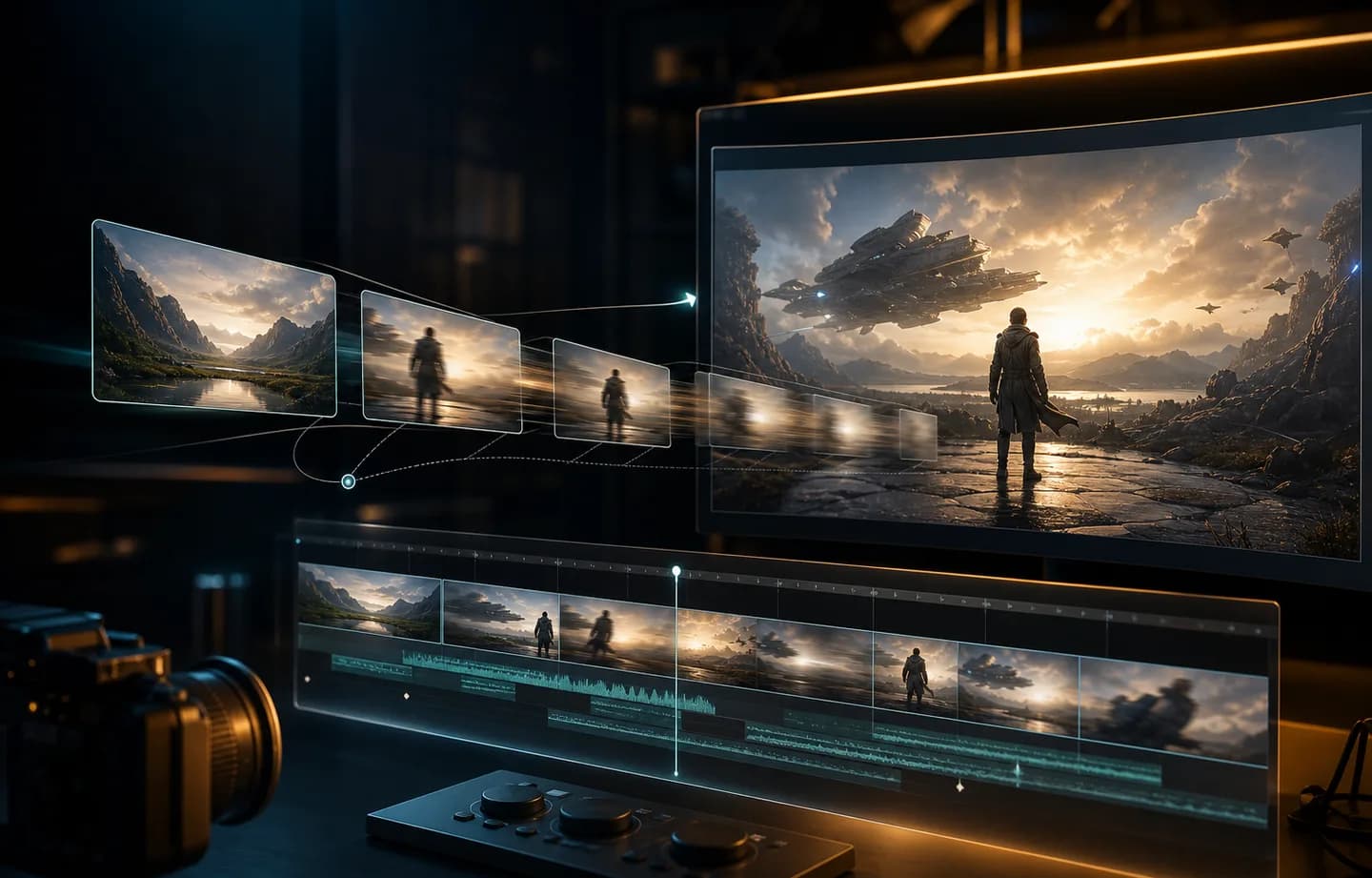
Gemini Omni Flash AI Video Generator for Fast Scene Tests

Gemini Omni Flash turns a clear visual idea into a focused 3-10 second video. In Creatii, start from text, animate one approved opening frame, or use up to 10 reference images, then choose landscape or vertical 720p output with the credit total visible before generation.

Test One Clear Action Without Overbuilding the Brief

Google describes Gemini Omni Flash as capable of following simple and complex instructions and simulating real-world physics. The Creatii workflow concentrates that strength into short, reviewable scenes with simple input choices and only the controls this integration actually supports.

Gemini Omni Flash prompt showing action reaction and camera direction
01

Describe cause, reaction, and camera in plain language

A useful Gemini Omni Flash prompt explains what changes over time: the object that moves, what reacts, how the environment behaves, and where the camera observes the event. This makes the model a practical option for product behavior, material tests, compact visual explanations, and one-beat story moments. Keep the physical relationship clear before adding style adjectives.

Plan an Omni Flash scene
Gemini Omni Flash first-frame image-to-video workflow
02

Animate one composition you already approved

Image-to-video uses a single first frame. Upload a product photograph, character pose, storyboard panel, or designed scene when the opening composition must stay recognizable, then describe movement, camera behavior, pacing, and constraints. Because no end frame is required, the workflow remains quick when the final beat can emerge naturally from the prompt.

Plan an Omni Flash scene
Gemini Omni Flash ten-image visual reference board
03

Turn up to ten images into a visual brief

Reference mode accepts images only in the current Creatii integration. Combine up to 10 images when subject identity, materials, location, palette, wardrobe, or art direction cannot fit into one frame. A strong prompt assigns each image a role and resolves conflicts between references instead of expecting the model to guess which details matter most.

Plan an Omni Flash scene
Gemini Omni Flash 16 by 9 and 9 by 16 video formats
04

Design for landscape or vertical before generating

Choose 16:9 for websites, presentations, and landscape placements or 9:16 for Shorts, Reels, and vertical ads. Creatii generates 720p video from 3 to 10 seconds at 13 credits per second. Selecting the placement and duration first helps the prompt describe framing and action that can actually fit the final screen and time window.

Plan an Omni Flash scene

Gemini Omni Flash Ideas That Fit One Strong Beat

Approved examples can show a product responding to touch, a liquid or fabric moving under a clear force, an opening campaign frame becoming a vertical clip, or a set of brand references guiding one compact scene. The most useful showcase pairs each input and prompt with the finished 3-10 second result.

What Our Users Say

One action is easier to judge

Omni Flash works best for us when the scene has one clear event. Writing the action and reaction in order makes review straightforward: we can tell whether the physical idea reads, whether the camera helps, and whether the concept deserves a more elaborate second pass.
Claire Morgan

The first-frame route stays focused

When a campaign frame is already approved, I do not want to redesign the ending just to test motion. The first-frame workflow keeps the composition grounded while the prompt explores a reveal, gesture, or camera move, which is exactly the level of control we need for early creative review.
Isaac Turner

Ten images make a compact art-direction board

The reference board is useful for a product family with several materials and styling rules. We can include the pack, surface, palette, and environment, then state which image defines each detail. That is clearer for the whole team than hiding every constraint inside one oversized prompt.
Sofia Lin

Vertical decisions happen before render

Choosing landscape or vertical before generation changes how we write the scene. In 9:16 we keep the subject centered and the movement readable on a phone; in 16:9 we can give the environment more room. The format feels like part of the direction, not an export afterthought.
Ethan Brooks

The credit estimate is refreshingly simple

The pricing logic is easy to explain because every generated second uses the same rate. We decide whether the idea needs three seconds or ten, see the total immediately, and avoid debating settings that this focused workflow does not expose.
Maya Wells

Turn one well-defined idea into a Gemini Omni Flash video

Open Gemini Omni Flash in Creatii, choose text, first-frame, or image-reference input, and generate a focused landscape or vertical clip with duration and credits already clear.

Create with Gemini Omni Flash

Plans for every creator

Choose the plan that fits your workflow.

Basic

50% OFF

For quick tests, personal projects, and everyday creation.

$19.9$9.95/mo

Billed annually

Save $119.40/year/Cancel anytime

800 Credits / month

~ 100 Nano Banana 2 Images

~ 200 GPT Image 2 Images

~ 14 Seedance 2.0 videos

~ 33 Kling 3.0 videos

Features

  • Access to selected image models
  • Access to selected video models
  • Access to selected Apps
  • 1 concurrent task
  • No queue waiting
  • No watermark
  • Private generation
  • Commercial license
Most Popular

Pro

60% OFF

For active creators who want more credits and every model.

$39.9$15.96/mo

Billed annually

Save $287.28/year/Cancel anytime

2000 Credits / month

~ 250 Nano Banana 2 Images

~ 500 GPT Image 2 Images

~ 34 Seedance 2.0 videos

~ 83 Kling 3.0 videos

Features

  • 20% credits bonus
  • Access to all image models
  • Access to all video models
  • Access to all Apps
  • Access to all video effects
  • 2 concurrent tasks
  • No queue waiting
  • No watermark
  • Private generation
  • Commercial license
  • Early access to advanced AI features
Best Value

Max

70% OFF

For high-output creators who need the most credits to create often.

$119.9$35.97/mo

Billed annually

Save $1,007.16/year/Cancel anytime

7200 Credits / month

~ 900 Nano Banana 2 Images

~ 1800 GPT Image 2 Images

~ 120 Seedance 2.0 videos

~ 300 Kling 3.0 videos

Features

  • 30% credits bonus
  • Access to all image models
  • Access to all video models
  • Access to all Apps
  • Access to all video effects
  • 4 concurrent tasks
  • No queue waiting
  • No watermark
  • Private generation
  • Commercial license
  • Early access to advanced AI features

Not ready to subscribe yet?

Starter credit pack

200 credits

$5

Frequently Asked Questions

What is Gemini Omni Flash?

Gemini Omni Flash is a Google multimodal generation model. In the current Creatii video workflow, it can create a short clip from text, animate one first frame, or use multiple images as visual references. The page focuses on the controls available in Creatii rather than implying every capability described for the wider model family is exposed here.

Can I use Gemini Omni Flash in Creatii now?

Yes. Open this model page or the main AI video workspace and select Gemini Omni Flash. Choose text-to-video, first-frame image-to-video, or reference-to-video, enter a focused prompt, select duration and format, then review the displayed credit estimate before generation.

Can Gemini Omni Flash generate video from an image?

Yes. Image-to-video animates one uploaded first frame. Use it when a product shot, character pose, storyboard panel, or composition is already approved. Describe what moves, how the camera behaves, and which details must remain stable instead of using the prompt to restate everything visible in the image.

How many reference images can I upload?

Reference mode accepts up to 10 images in the current Creatii integration. Use them as a compact visual brief for identity, materials, setting, wardrobe, palette, or style. If two images conflict, clarify which one controls the disputed detail in the prompt.

Can I upload reference video or audio to Gemini Omni Flash?

Not through this Creatii model route. Gemini Omni Flash reference mode currently accepts images only. Choose MiniMax H3 or Seedance 2.5 when the job specifically requires video or audio reference files, and compare their duration, resolution, and credit options before generating.

What resolution, duration, and aspect ratios are supported?

Creatii exposes Gemini Omni Flash at 720p for 3-10 second clips. Choose 16:9 for landscape delivery or 9:16 for vertical delivery. Selecting the destination first helps you write a prompt with framing and action that suit the final placement.

How many credits does Gemini Omni Flash use?

Gemini Omni Flash costs 13 credits per generated second in Creatii. A 3-second test uses 39 credits, while a 10-second clip uses 130 credits. The estimate updates with duration so the cost is visible before you submit the generation.

How should I prompt Gemini Omni Flash?

Start with the subject and one main action. Add the cause and reaction, then describe camera position or movement, environment, lighting, pace, and important constraints. Google notes that complex motion and perfectly accurate text can still be challenging, so keep on-screen writing limited and avoid packing unrelated events into a short clip.

When should I use reference mode instead of first-frame mode?

Use first-frame mode when one approved composition contains enough information and should become the opening shot. Use reference mode when several images are needed to define identity, product details, materials, location, or art direction. Text-to-video is better for open exploration without a required visual anchor.

Still have questions? Contact us at support@creatii.ai.